November 6, 2026
Autodesk Fusion Drawing Automation: A Practical Guide for Malaysian Manufacturers
For a Malaysian precision engineering workshop, preparing drawings is essential but can consume time that designers would rather spend on fit, function and manufacturability. Autodesk Fusion drawing automation offers a way to generate an initial 2D drawing set from a 3D design. The useful question is not whether automation replaces a drawing checker; it is how to build a repeatable workflow that gives engineers more time to review critical details.
What Fusion drawing automation does
Autodesk documents an Automatic drawing type in the Fusion Drawing workspace. Depending on the model and selected preferences, the workflow can create sheets, views and automatic dimensions. It can use a template or start from scratch. The official Drawing Automation guide explains that users should review and adjust the resulting drawing rather than treating it as finished manufacturing documentation.
Prepare the 3D model first
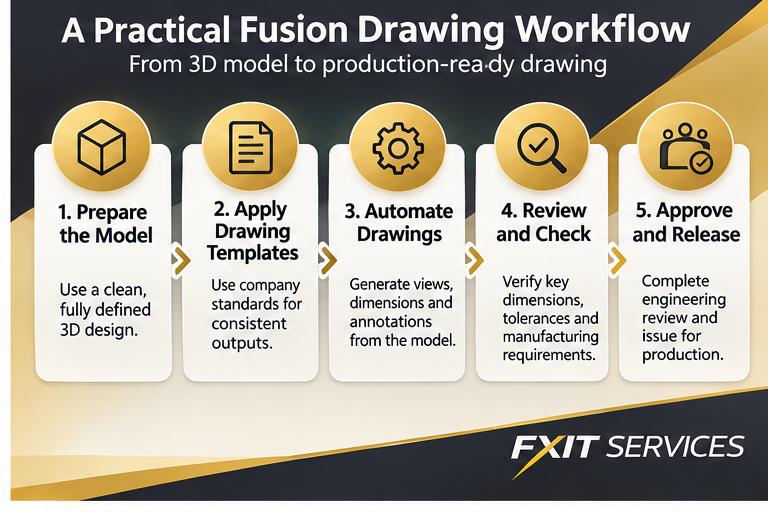
Check that geometry is complete, units are correct, important features are named clearly and assembly structure reflects manufacturing needs. Identify critical interfaces, holes, mating surfaces and inspection dimensions. Decide which components need individual drawings and which can be documented on assembly sheets. A drawing generator cannot infer the commercial or engineering intent of an ambiguous model. Review the source model with the machinist or designer before automating downstream documentation.
Build a reusable drawing template
A consistent title block, units, revision convention and sheet layout reduce confusion across teams and suppliers. Fusion supports templates when creating automated drawings. A workshop may need separate templates for machined parts, fabricated assemblies and customer approval drawings. Agree which fields are mandatory before making a template the default. Autodesk automation preferences documentation describes template-based and from-scratch setup.
Choose the right scope
From the design, open the Drawing workspace and select Automatic. Review contents and automation preferences rather than accepting defaults. Preferences can address assemblies, subassemblies and components. A complex assembly needs a different sheet strategy from a single bracket. Start with a representative component and confirm the drawing structure before applying the method across a large project. Record the settings so another engineer can reproduce the same output.
Review dimensions and manufacturing intent
Fusion Auto Dimension offers baseline, chain, ordinate and overall strategies. Not every generated dimension is appropriate for inspection or production. An engineer must still review datums, tolerances, fits, surface finish, material notes and applicable standards. For CNC parts, coordinate with machining and quality teams. Remove redundant dimensions and ensure the drawing communicates how the part should be made and checked. An attractive layout is not proof of engineering accuracy.
Check revisions and readability
After changing the model, verify associated views and revised features. Compare against the approved design, and inspect crowded areas, detail views and sections at intended PDF or print size. Autodesk documents a Tidy Up command for arranging drawing objects, but visual tidiness does not replace sign-off. Record revision history and identify who approves a drawing before it is issued to a supplier.
Where AI fits and where it does not
Autodesk describes drawing automation among Fusion’s AI-assisted capabilities on its official manufacturing page. Users should verify current entitlement, software build and feature availability before deployment. Do not assume every automated operation is generative AI, or that a generated drawing has passed design review. Treat automated output as a draft for qualified engineering validation.
Pilot the workflow locally
Choose a representative machined part. Record manual drawing preparation effort and recurring review errors. Create a template, generate a drawing, inspect it and record corrections. Repeat with a part of different geometry. This gives your own team evidence about usefulness without inventing universal productivity percentages. Include a colleague who did not prepare the model to test whether the drawing is understandable.
Licensing and next steps
Fusion combines CAD and CAM, but advanced manufacturing functions can depend on subscriptions and extensions. A personal-use licence should not be assumed suitable for commercial work. Confirm current terms and requirements. FXIT lists Autodesk Fusion in its software catalogue. Share your drawing standards and typical parts when you request a quotation.
Sources checked 6 November 2026
Autodesk Drawing Automation; Automation Preferences; Fusion for Manufacturing. Features and entitlements should be reconfirmed at purchase.
Practical quality-control checklist before release
Before a drawing is released, ask a second engineer to compare it with the approved model and purchase requirements. Confirm part number, revision, material, units, scale, view orientation, section references and any inspection-critical dimensions. Check whether the document contains enough information for a supplier to quote accurately and for quality personnel to inspect the finished part. Record unresolved questions rather than filling gaps with assumptions. If the drawing will be shared externally, export a controlled PDF and identify the approved file version. Keep editable models and drawings in an agreed project location with access permissions suited to the team. These controls matter whether drawings were created manually or automatically.
Visual workflow summary