November 13, 2026
Revit 2027 and Forma Site Design: A Linked DWG Troubleshooting Checklist

Bahasa Melayu — Baca artikel penuh
Apabila sambungan gagal
Model awan Revit 2027 mungkin kekal dalam persediaan sebelum tamat masa atau memaparkan had tapak ketika menyambung ke senario Forma. Autodesk mendokumenkan satu kemungkinan: DWG terpaut dengan keluasan geografi atau geometri yang luar biasa besar. Punca lain boleh menghasilkan gejala serupa; ini petunjuk diagnostik, bukan penyelesaian sejagat.
Sahkan persekitaran
Rekod binaan Revit, aliran kerja Forma, projek, model, masa dan mesej penuh. Sahkan model awan, akses dan kelayakan yang diperlukan. Dokumentasi Autodesk menyebut projek yang ditambah ke pratonton teknologi berkaitan; sahkan ketersediaan semasa dengan Autodesk. Tanya sama ada rakan mengalami masalah yang sama.
Semak DWG terpaut
Senaraikan sumber, tujuan, pemilik dan koordinat setiap DWG. Geometri jauh daripada tapak mungkin relevan, tetapi bukan satu-satunya punca. Autodesk belum mengesahkan ambang keluasan tepat yang mencetuskan kegagalan; jangan anggap had tapak Forma 2 × 2 km atau had pemodelan Revit 20 batu sebagai ambang sambungan.
Uji secara terkawal
Selaras dengan pemilik model dan simpan garis asas yang boleh dipulihkan. Dalam salinan atau persekitaran ujian yang dibenarkan, nyahmuat DWG yang disyaki dan cuba semula; rekod hasilnya. Autodesk melaporkan nyahmuat atau pembuangan DWG terlibat membolehkan model contoh disambungkan. Kejayaan hanya menunjukkan kemungkinan punca. Jangan buang pautan daripada model langsung tanpa kelulusan.
Semak fail sumber
Minta pemilik CAD memeriksa keluasan dan geometri terpencil. Setujui rujukan yang dibersihkan atau dihadkan mengikut prosedur projek, kemudian sahkan koordinat, unit dan kandungan sebelum memaut semula. Jangan padam secara membuta tuli; geometri jauh mungkin penting. Kekalkan asal dan dapatkan kelulusan penggantian.
Uji semula dan eskalasi
Ulang ujian, bandingkan kedudukan dan kandungan dengan garis asas, rekod versi model dan libatkan penyelaras BIM. Jika gagal, kumpulkan mesej, nombor binaan dan langkah untuk sokongan Autodesk. Kongsi fail sulit hanya melalui proses yang diluluskan.
Contoh dan rekod sokongan
Bagi contoh dua DWG, rekod laluan dan dapatkan kebenaran pemilik model. Dalam salinan ujian, nyahmuat satu pautan, cuba semula, pulihkan garis asas dan uji pautan kedua secara berasingan. Jika tiada perubahan, siasat punca lain. Catat langkah, gejala berulang, versi dan masa tanpa kata laluan atau data peribadi yang tidak diperlukan; dapatkan kelulusan sebelum berkongsi fail.
Sebelum produksi
Ketua projek perlu meluluskan rujukan, menyemak kedudukan terhadap koordinat projek dan mengesahkan kandungan untuk perunding. Rekod nama asal dan pengganti, tarikh serta pemilik. Nilai kesan kepada model dan serahan lain, selaras jadual, dan dokumentasikan cara memulihkan keadaan terdahulu.
Selaras ujian
Tetapkan masa ujian dan maklumkan rakan projek. Rekod penguji serta hasil dijangka, kemudian maklumkan pemilik model, pulihkan garis asas jika perlu dan sahkan kerjasama biasa diteruskan. Serahan yang jelas mengelakkan perubahan projek tanpa dokumentasi.
Lesen dan rujukan
Sahkan perkhidmatan Revit dan Forma, akses, keserasian versi, kelayakan projek dan lesen. Uji model bukan kritikal dan sediakan pelan undur. Rujuk katalog perisian FXIT atau minta sebut harga. Sumber: panduan Autodesk mengenai DWG terpaut dan sambungan senario, disemak 13 November 2026.
简体中文 — 阅读全文
连接失败时
Revit 2027 云模型连接 Forma 场景时可能持续准备后超时或提示超出场地限制。Autodesk 记录的一种可能原因是链接 DWG 的地理或几何范围异常大。类似症状也可能由其他原因造成,因此这只是排查线索,并非通用解决方案。
确认环境
记录 Revit 构建号、Forma 工作流、项目、模型、时间及完整错误。确认云模型、访问权限和许可。Autodesk 场景说明提到加入相关技术预览的项目;使用前向 Autodesk 确认当前可用性。询问其他成员是否遇到同样问题。
检查链接 CAD
列出每个 DWG 的来源、用途、负责人和预期坐标。远离场地的几何对象可能有关,但并非唯一原因。Autodesk 尚未确认触发连接失败的精确范围;不要将 Forma 2×2 公里场地限制或 Revit 20 英里建模限制当成连接阈值。
受控测试
与模型负责人协调并保留可恢复基线。在授权副本或测试环境中卸载可疑 DWG 后重试并记录结果。Autodesk 报告示例中卸载或移除相关 DWG 后可以连接;成功仅说明可能的原因。未经项目批准不要从生产模型移除链接。
检查源文件
请 CAD 文件负责人检查范围和远处几何对象。按项目流程商定清理或限定范围的参考文件,重新链接前核实坐标、单位和必要内容。不要随意删除远处对象;它们可能是有效测量或协调资料。保留原件并批准替换。
复测与升级
用商定的参考文件复测,对照基线检查位置和内容,记录模型版本并通知 BIM 协调人。若问题仍在,整理错误、构建号和复现步骤提交 Autodesk 支持。机密项目文件须按批准流程共享。
示例与支持记录
例如有两个 DWG 时,记录路径并取得模型负责人许可。在测试副本中分别卸载一个链接、重试并恢复基线;若无变化,应调查其他原因。记录复现步骤、版本、错误和时间,不要包含密码或无关个人数据;共享文件前取得批准。
恢复生产前
项目负责人应批准参考文件,依据已知项目坐标核对位置并确认顾问所需内容。记录原文件和替代文件的名称、日期及负责人,评估对其他模型和交付物的影响,与团队协调并记录回退方法。
协调测试
约定测试窗口并通知项目协作者,事先记录授权测试人和预期结果。测试后通知模型负责人,必要时恢复基线并确认正常协作已恢复,避免排查变成未记录的项目变更。
许可与来源
确认 Revit、Forma 服务、账户权限、版本兼容性、项目资格及许可。先在非关键模型试点并准备回退方案。可查看 FXIT 软件目录或索取报价。来源:Autodesk 链接 DWG 与场景连接指南,核查于 2026 年 11 月 13 日。
When a scenario connection fails
A Malaysian design team may find that a Revit 2027 cloud model remains in a preparation state and then reports a timeout or a site-limit message while connecting to a Forma scenario. Autodesk documents one possible cause: a linked DWG with unusually large geographic or geometric extents. Other causes can produce similar symptoms, so treat this as a diagnostic lead rather than a universal fix.
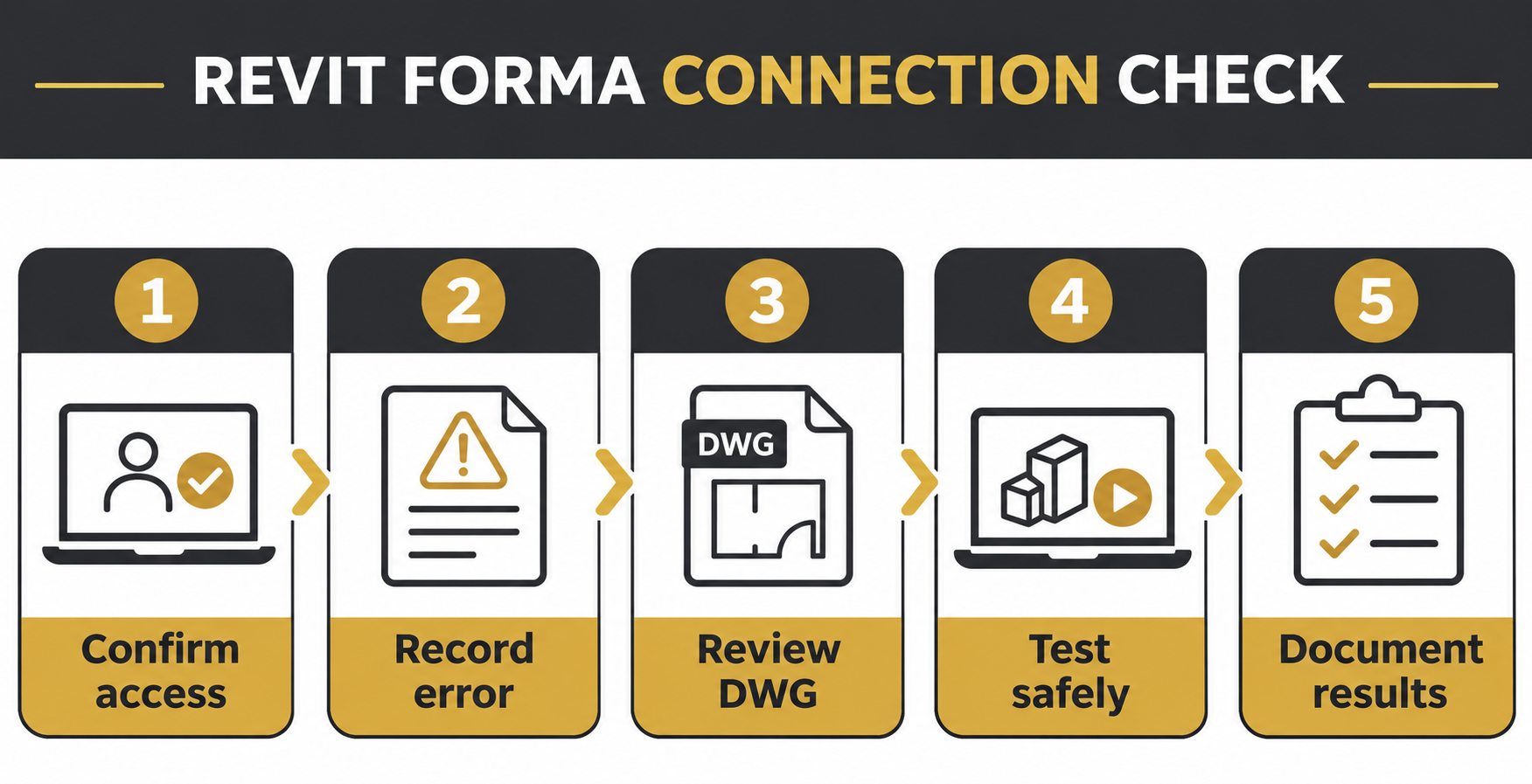
Confirm the environment
Record the exact Revit build, Forma workflow, project, model and time of failure. Confirm that the active file is the appropriate Revit cloud model and that the project and user have the required access and entitlements. Autodesk’s scenario documentation describes a project added to the relevant technology preview; verify current availability and eligibility with Autodesk before relying on it. Capture the full error and ask whether colleagues see the same behaviour.
Check linked CAD carefully
List linked DWGs, their source, purpose, owner and expected coordinates. A survey or consultant file may contain geometry far away from the intended site, but an oversized file is only one possible explanation. Autodesk has not confirmed the exact extent that triggers this connection failure. Do not present the Forma 2 × 2 km site limit or Revit’s 20-mile modelling limit as the connection threshold.
Run a controlled test
Coordinate with the model owner and preserve a recoverable baseline. In an authorised test copy or agreed test environment, unload the suspected DWG and retry the connection, then document the result. Autodesk reports that unloading or removing the affected DWG allowed the example model to connect. A successful test identifies a likely contributor; it does not prove every project has the same cause. Do not remove links from a live coordinated model without project approval.
Review the source file
If the test points to the DWG, ask its owner to inspect extents and outlying geometry in the appropriate CAD workflow. Agree on a project-approved cleaned or limited reference and verify coordinates, units and required content before reloading it. Avoid indiscriminate deletion: remote geometry may carry legitimate survey or coordination information. Retain the original and obtain approval for any replacement.
Retest and escalate
Repeat the connection test with the agreed reference. Compare positioning and required content with the baseline, record the model version and link used, and involve the BIM coordinator before wider use. If the issue remains, collect the error, build numbers and reproducible steps for Autodesk support. Do not share confidential project files without the organisation’s approved process.
Buyer and deployment considerations
Confirm the Revit and Forma services, account access, version compatibility and licensing required for the intended workflow. Availability and project eligibility can change. Pilot in a non-critical model and document the rollback plan before changing a production project. FXIT lists Revit in its software catalogue; request a quotation for a requirements discussion.
Example: isolate one variable
Consider an illustrative project with two linked DWGs: a survey and a consultant reference. Record both paths and obtain the model owner’s permission for a test. Unload one link in a test copy, retry, restore the baseline and then test the other link separately. Changing one variable at a time makes the result easier to interpret. If neither test changes the outcome, continue investigating other possible causes instead of deleting additional project information.
What to include in a support record
Write down the exact sequence leading to the failure, whether the issue is repeatable and whether the same user can access another eligible project. Record the model and link versions, the error text and the approximate time. Avoid including account credentials or unrelated personal information. Ask the project owner what can be shared before transmitting a model or consultant drawing.
Before returning to production
A project lead should approve the chosen reference, validate its location against known project coordinates and confirm that consultants can still access required information. Keep a record of the original and replacement file names, dates and responsible owners. If the change affects other linked models or deliverables, assess those dependencies and schedule any update with the team. Document how to restore the prior state if the test introduces a new issue.
Coordinate the test
Agree a test window when project collaborators know the model may be unavailable. Record the authorised tester and the expected outcome before starting. After the test, notify the model owner of any change, restore the approved baseline where needed and confirm that normal collaboration has resumed. A clear handover prevents a troubleshooting step from becoming an undocumented change to the project.
References
Autodesk: linked DWG and Forma connection issue and Connect to a Scenario. Reviewed 13 November 2026. Project requirements and current vendor guidance take precedence.