November 14, 2026
Autodesk Forma Model Coordination Issues: A Troubleshooting Checklist for Malaysian BIM Teams

Bahasa Melayu — baca artikel penuh
Penyelesaian Masalah Isu Autodesk Forma Model Coordination untuk Pasukan BIM Malaysia
Apabila pasukan BIM tidak dapat mencipta atau menerbitkan isu dalam Model Coordination, masalahnya tidak semestinya berpunca daripada model. Ia boleh berlaku kerana akses produk, kebenaran projek, tetapan jenis isu, medan wajib atau terlalu banyak model dibuka serentak. Senarai semak ini membantu penyelaras BIM mengasingkan punca sebelum meminta pengguna memuat naik semula fail atau membina semula model.
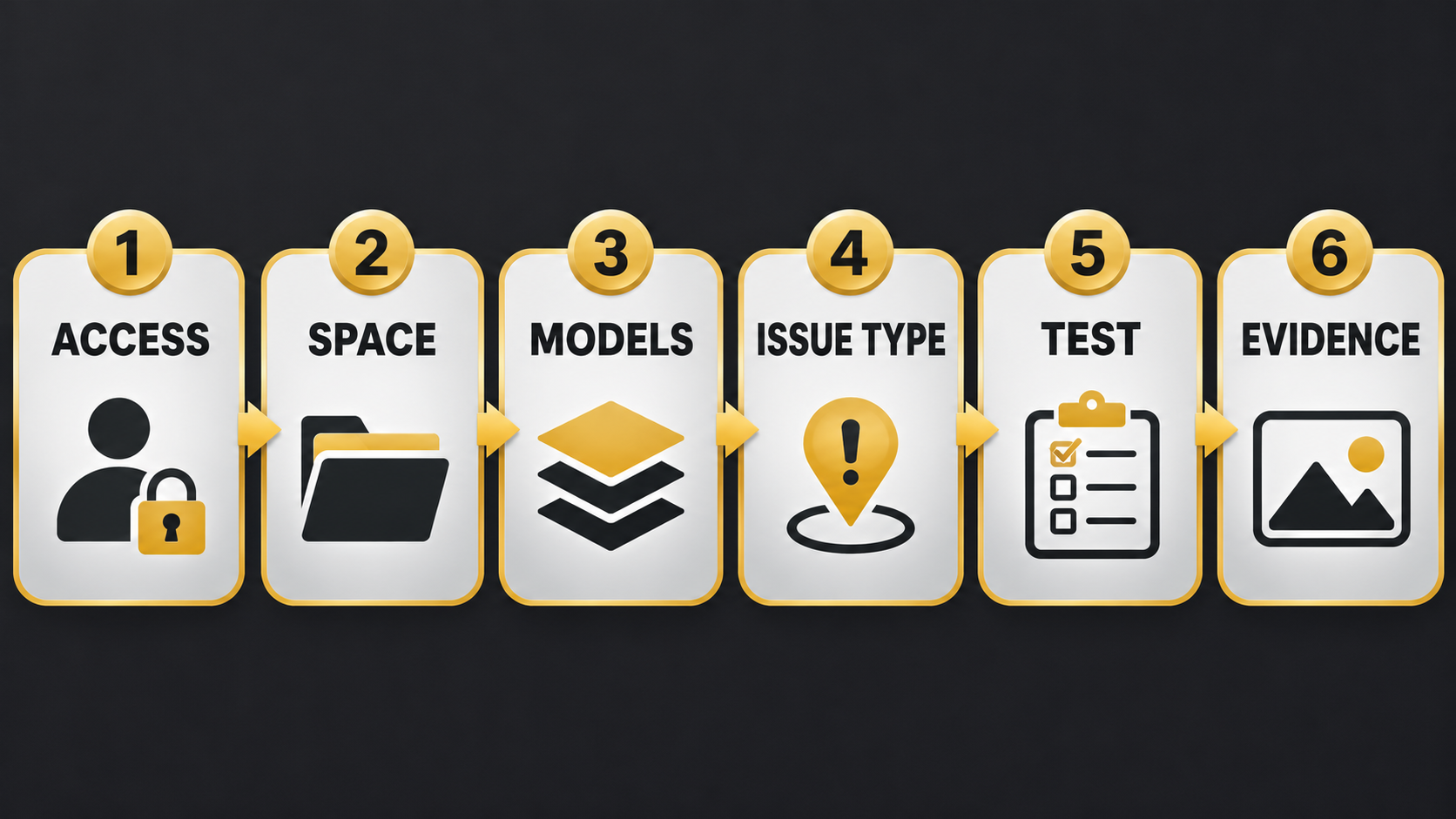
1. Bezakan akses projek daripada langganan
Jemputan ke projek sahaja tidak memberikan hak penggunaan produk. Dokumentasi Autodesk menerangkan bahawa pengguna memerlukan kedua-dua akses kepada produk dalam projek dan langganan atau percubaan yang berkaitan. Semak akaun pengguna, hab yang betul, produk yang diaktifkan dan peranan projek. Jika pengguna boleh membuka Data Management tetapi tidak boleh menggunakan Model Coordination, jangan anggap kebenaran folder sahaja mencukupi.
2. Semak ruang koordinasi dan model
Pastikan model berada dalam folder yang termasuk dalam ruang koordinasi aktif, proses pemprosesan telah selesai, dan versi yang dijangka tersedia. Gunakan set model kecil yang diketahui berfungsi sebagai ujian. Autodesk menyatakan isu tidak boleh dicipta apabila lebih daripada 1,000 model dibuka dalam pemapar; kurangkan pilihan kepada model disiplin yang diperlukan. Isu yang mengandungi data clash juga tertakluk kepada had platform, jadi pecahkan pilihan yang sangat besar kepada kumpulan kerja yang boleh disemak.
3. Semak jenis isu, templat dan medan wajib
Jenis dan templat isu dikonfigurasi oleh pentadbir projek dalam Forma Data Management. Jika jenis dinyahaktifkan, kebenaran mencipta tiada, atau medan wajib tidak lengkap, aliran kerja boleh berhenti. Pilih jenis aktif, lengkapkan medan bertanda wajib dan semak status yang dibenarkan. Sesetengah isu kekal sebagai Draf sehingga semua medan wajib diisi; itu ialah kawalan proses, bukan kegagalan penerbitan.
4. Uji penempatan dan konteks
Buka bilangan model minimum, pilih satu konflik atau elemen, letakkan pushpin pada model yang perlu diperbetulkan dan cuba satu isu ujian dengan tajuk yang jelas. Apabila beberapa model dibuka, penempatan menentukan model utama. Elakkan menukar thumbnail atau markup tanpa memahami kesannya kerana Autodesk memberi amaran bahawa konteks model agregat dan warna clash boleh hilang apabila thumbnail diganti dalam alat lain.
5. Kumpulkan bukti sebelum eskalasi
- Nama projek, hab dan ruang koordinasi.
- E-mel pengguna serta produk/langganan yang diberikan.
- Peranan projek dan kebenaran mencipta isu.
- Jenis atau templat isu yang dipilih.
- Bilangan model dan clash yang dibuka.
- Masa kejadian, mesej ralat dan tangkapan skrin.
- Keputusan ujian dengan model dan jenis isu yang diketahui berfungsi.
Bukti ini membezakan masalah lesen, pentadbiran, data dan pelayar. Ia juga mengelakkan perubahan rawak pada model produksi.
Aliran pemulihan yang disyorkan
- Sahkan langganan dan akses produk pengguna.
- Sahkan servis projek dan ruang koordinasi aktif.
- Uji dengan dua atau tiga model sahaja.
- Gunakan jenis isu aktif tanpa medan tersembunyi yang belum lengkap.
- Cipta satu isu ujian dan rekod keputusan.
- Tambah semula model secara berperingkat sehingga punca dikenal pasti.
Dokumentasikan keputusan ujian dan pemilik tindakan supaya semakan seterusnya boleh mengesahkan perubahan tanpa mengulangi keseluruhan diagnosis.
FXIT boleh membantu pasukan menilai keperluan perisian dan aliran kerja sebelum pelaksanaan. Lihat pilihan perisian FXIT atau minta perbincangan sebut harga. Semak hak produk sebenar dengan pentadbir dan dokumentasi Autodesk semasa sebelum membuat keputusan pembelian.
简体中文 — 阅读完整文章
马来西亚 BIM 团队的 Autodesk Forma Model Coordination 问题排查清单
当 BIM 团队无法在 Model Coordination 中创建或发布问题时,原因不一定是模型损坏。问题也可能来自产品访问权、项目权限、问题类型设置、必填字段,或查看器中同时打开了过多模型。本清单帮助 BIM 协调员先隔离根因,再决定是否需要重新上传文件或修改模型。
1. 区分项目访问权与订阅权利
被邀请进入项目,并不代表自动获得产品使用权。Autodesk 文档说明,用户必须同时拥有项目中的产品访问权,以及相关订阅或有效试用。请检查用户账户、正确的项目中心、已启用产品和项目角色。如果用户能进入 Data Management,却不能使用 Model Coordination,不要只检查文件夹权限。
2. 检查协调空间和模型
确认模型位于活动协调空间覆盖的文件夹中,处理已完成,并且预期版本可用。先使用一组已知可工作的少量模型测试。Autodesk 指出,当查看器中打开超过 1,000 个模型时不能创建问题,因此应只加载需要审查的专业模型。带有冲突数据的问题也受平台限制;非常大的选择应拆分成可审查的小组。
3. 检查问题类型、模板和必填字段
问题类型与模板由项目管理员在 Forma Data Management 中配置。如果类型已停用、用户缺少创建权限,或必填字段未完成,工作流可能停止。请选择活动类型,完成所有必填字段,并检查允许的状态。某些问题会保持“草稿”状态,直到必填字段完整;这通常是流程控制,而不是发布失败。
4. 测试放置点与模型上下文
打开最少数量的模型,选择一个冲突或构件,将图钉放在需要修改的模型上,然后创建一个标题清晰的测试问题。打开多个模型时,放置点会决定主要模型。更换缩略图或标记前应了解后果;Autodesk 警告,在其他工具中重新生成缩略图可能丢失聚合模型上下文和冲突颜色。
5. 升级支持前收集证据
- 项目、中心和协调空间名称。
- 用户邮箱及已分配的产品或订阅。
- 项目角色与创建问题权限。
- 选择的问题类型或模板。
- 打开的模型与冲突数量。
- 发生时间、错误信息与截图。
- 使用已知可用模型和类型的测试结果。
这些资料能区分许可、管理、数据和浏览器问题,避免对生产模型进行无目标修改。
建议恢复流程
- 确认用户订阅与产品访问权。
- 确认项目服务与协调空间已启用。
- 仅用两到三个模型测试。
- 使用活动的问题类型并完成所有必填字段。
- 创建一个测试问题并记录结果。
- 逐步增加模型,直到识别触发条件。
记录测试结果和行动负责人,后续审查即可验证变更,而无需重复整个诊断过程。
FXIT 可协助团队在部署前评估软件与工作流需求。请查看 FXIT 软件页面,或通过 询价页面讨论需求。购买前仍应由管理员结合最新 Autodesk 文档确认实际产品权利。
Autodesk Forma Model Coordination issue troubleshooting for Malaysian BIM teams
Autodesk Forma Model Coordination issue troubleshooting should begin with access, configuration and scale—not with an immediate model re-upload. When a Malaysian BIM team cannot create or publish an issue, the cause may be product access, project permissions, issue settings, required fields or the number of models open in the viewer. A structured check protects production data and gives administrators useful evidence.
1. Separate project access from subscription entitlement
An invitation to a project does not by itself provide the right to use every product. Autodesk explains that a member needs both product access within the project and a relevant subscription or active trial. Check the member’s Autodesk account, the correct hub, assigned product, project membership and role. If the member can open Forma Data Management but cannot enter Model Coordination, folder permission alone is not enough evidence that the product entitlement is correct.
Use a simple access matrix: member, company, project role, activated services, assigned subscription and expected task. This prevents teams from repeatedly changing model permissions when the real issue is an account or subscription assignment.
2. Verify the coordination space and processed models
Confirm that the source folder is included in an active coordination space, processing has completed and the expected model version is available. Start with a small set of known-good models. Autodesk states that an issue cannot be created when more than 1,000 models are open in the viewer. It also documents a maximum of 400,000 clashes in an issue. These are upper limits, not operating targets; practical reviews should use focused model sets that coordinators can understand and validate.
If a small test succeeds, add disciplines or packages in controlled groups. Record the first group that reproduces the failure. That produces a useful boundary for diagnosis without rebuilding every model.
3. Check issue types, templates and required fields
Project administrators configure issue permissions, categories, types, templates, custom fields and root causes in Forma Data Management. A disabled type, missing create permission or incomplete required field can stop the workflow. Select an active type or template and complete every field marked as required. Autodesk notes that an issue can remain in Draft when required fields are incomplete; that is expected workflow behaviour, not proof that the issue was lost.
Administrators should maintain a small, approved set of issue types and test them after configuration changes. Retire obsolete types carefully and communicate replacements before a live coordination review.
4. Test placement and context
Open the minimum model set, select one clash or element, place the pushpin on the model that should be corrected and create one clearly named test issue. When multiple models are open, placement determines the primary model associated with the issue. Check the thumbnail, placement, assignee and required fields before expanding the test.
Be careful when retaking thumbnails or adding markups in another Forma tool. Autodesk warns that replacing the thumbnail can remove aggregated-model context and clash colouring from coordination issues. Preserve the original context until the receiving team confirms it has enough information.
5. Capture evidence before escalation
- Project, hub and coordination-space names.
- Affected member and assigned subscription.
- Project role and issue-creation permission.
- Selected issue type or template.
- Number of open models and selected clashes.
- Timestamp, browser, error text and screenshot.
- Result of a known-good model and issue-type test.
This evidence separates licensing, administration, data and browser causes. It also reduces the risk of an unnecessary production-model change.
A practical recovery sequence
- Confirm the member’s subscription and product access.
- Confirm the required project services and coordination space are active.
- Test with two or three known-good models.
- Use an active issue type and complete every required field.
- Create one test issue and record the result.
- Add models back in controlled groups until the trigger is identified.
Document the test result and action owner so the next review can verify the change without repeating the entire diagnosis.
FXIT can help teams clarify software and workflow requirements before deployment. Review the FXIT software catalogue and request a requirements discussion. Product availability and entitlements should always be confirmed against the current Autodesk account and documentation.
Sources checked
Verified 14 November 2026: Autodesk: Create Issues in Model Coordination; Autodesk: Edit and Publish Issues; Autodesk: Product Access and Subscriptions.